
Visualizing White Ink Tattoos Before You Ink: An AI-Powered Guide
White ink tattoos are uniquely subtle, often resembling delicate lace or scarification, but they are notoriously difficult to visualize mentally. Unlike black ink, the visibility of white ink depends entirely on your specific skin undertones and texture. This uncertainty often leads to hesitation or regret if the final result doesn't pop as expected.

Tatspark is not just an image generator; it is an AI Tattoo Design Agent built to solve this exact visualization gap. Instead of guessing, you can use our 3D Virtual Try-On engine to see exactly how a white ink design will sit on your body. You provide the inspiration, and the Agent handles the physics of skin texture and lighting.
This page provides the specific workflows and prompts you need to design, convert, and virtually "wear" white ink tattoos before checking into a studio.
How to Use This Guide
- Identify Your Need: Are you creating a new design from scratch, or do you have a drawing you want to test as white ink?
- Select a Scenario: Find the card below that matches your current stage (Design, Visualization, or Conversion).
- Execute:
- For Design: Copy the text prompt into the Create module.
- For Visualization: Follow the instructions for the 3D Virtual Try-On feature.
- Refine: Use the advanced LLM prompts if you need to refine the concept with an AI chat assistant before generating.
Scenario A: Simulating White Ink on Your Specific Skin Tone
How will this actually look on my skin?
White ink interacts differently with pale, olive, and dark skin tones. You need to verify contrast and visibility before the needle hits your skin. Use the 3D Virtual Try-On feature to map the design onto a photo of your body, automatically adjusting for curvature and lighting.
- Upload a clear photo of your intended placement (e.g., wrist, collarbone).
- Select your white ink design.
- Click 3D Virtual Try-On to render the realistic preview.

Role: AI Tattoo Consultant & Visualizer
Context: The user wants to get a white ink tattoo but is concerned about visibility on their specific skin tone.
Task: Guide the user to simulate the tattoo using Tatspark's 3D Try-On technology.

Instructions:
1. Explain that white ink tattoos rely on skin undertones for contrast.
2. Recommend the user upload a photo of their body to Tatspark.
3. Instruct them to use the "3D Virtual Try-On" feature, specifically looking for the "opacity" and "blend mode" settings to mimic healed white ink.
4. Provide a prompt to generate a test design if they don't have one:
   "Generate a delicate mandala design, white ink style, faint contrast, purely linework, no shading, minimal vector style."
Scenario B: Designing specifically for "White Ink" Style
How do I create a design meant for white ink?
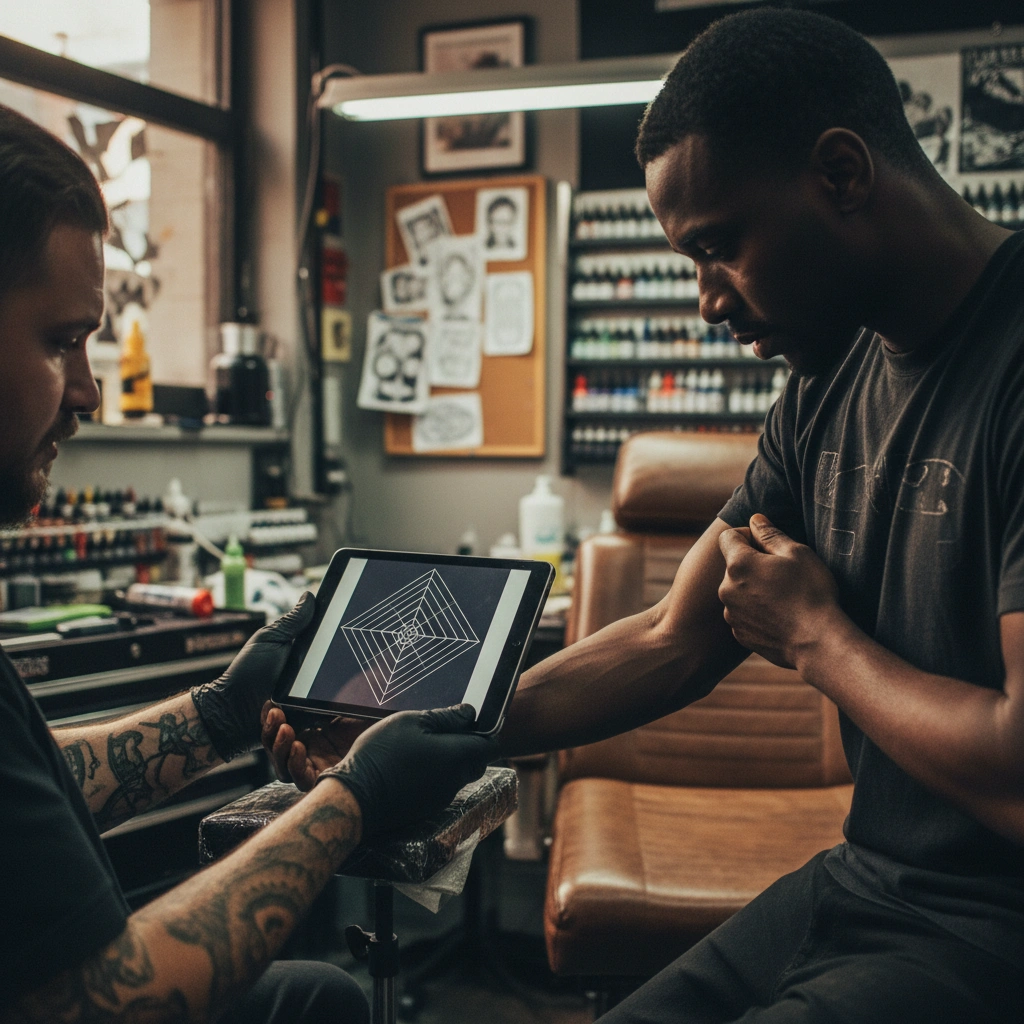
Standard tattoo designs often have heavy black shading that translates poorly to white ink. You need to use the Create engine to generate designs that focus on negative space, delicate linework, and high readability without relying on black outlines.
"A delicate lace pattern wrapping around the wrist, designed for white ink application, subtle elegance, geometric scarification style, high fidelity, white lines on skin texture background."
Role: Tattoo Design Technical Expert
Context: The user wants to generate a new tattoo design specifically for white ink application.
Task: Create a prompt optimized for Tatspark's "Create" engine.

Analysis:
- White ink requires "negative space" logic.
- Avoid heavy shading; focus on "line weight" and "silhouette."

Prompt Output for Tatspark:
"Design a [Subject, e.g., Rose/Feather] in a 'White Ink' aesthetic. Use fine lines, ethereal style, and low contrast shading. The design must be legible as a silhouette. Emphasize delicate details that mimic lace or branding. Exclude heavy black borders."
Scenario C: Converting Black Line Art to White Ink Concepts
Can I turn this black drawing into a white ink tattoo?
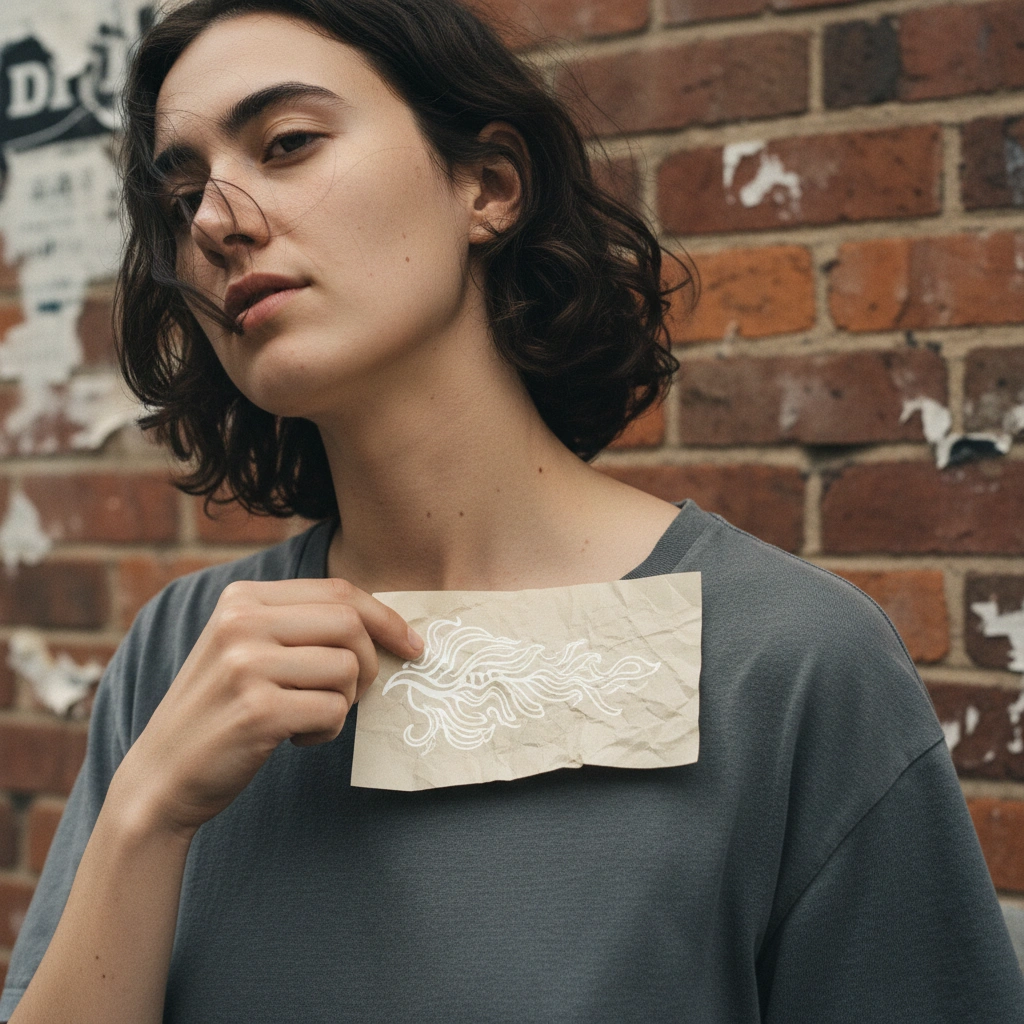
You might have a black line drawing but want to see if it works as a white ink piece. Instead of re-drawing it, use the Remix or Convert functions to invert the colors and adjust the style to be lighter and more subtle, simulating the healed look of white ink.
- Upload your black line drawing or sketch.
- Select Remix.
- Prompt: "Convert to white ink style, invert colors, soft glowing edges, realistic skin texture background."
Role: Tattoo Style Transfer Agent
Context: User has a traditional black stencil but wants to visualize it as white ink.
Task: Instruct the user on using Tatspark's Remix capability.

Instructions:
1. Acknowledge that direct color inversion isn't enough; line weight must be thinned for white ink.
2. Direct the user to upload their image to Tatspark.
3. Use the following Remix instruction:
   "Remix this image into a 'White Ink on Skin' visualization. Invert the black lines to white, reduce opacity to 80% to simulate healed skin, and add a soft skin-tone background for contrast check."
Conclusion
White ink tattoos are a beautiful but technically demanding choice. The gap between imagination and reality can be wide, but AI bridges that gap effectively. By using Tatspark to Create specialized designs and 3D Virtual Try-On to verify them on your body, you can commit to your ink with zero doubts.