
Mastering Line Strength: Teaching AI to Understand Tattoo Line Weight
Line Strength in the context of Generative AI refers to the algorithm's capability to differentiate between structural outlines and incidental shading. In traditional image generation, "lines" are often treated as pixels rather than vectors, leading to blurry results that cannot be printed on thermal paper.
Tatspark solves this technical hurdle by training its Stencil and Convert models on specific Tattoo Design Rules. This ensures that the output prioritizes high-contrast, variable Line Weight that defines the tattoo's longevity, rather than just aesthetic lighting. By isolating the Line Work, users can generate designs that are immediately ready for transfer, saving hours of manual tracing on an iPad.
Role: Tattoo Design Expert
Task: Generate a high-contrast stencil comparison
Context: Comparing standard AI raster output vs Tatspark vector-optimized lines
Action: Generate a diagram showing clear line weights suitable for thermal printing.
Quick Fact Sheet
| Feature | Standard AI Generators | Tatspark Solutions |
|---|---|---|
| Line Definition | Soft edges, often confused with shadows. | Crisp, high-contrast lines optimized for needles. |
| Output Type | Raster/Pixel Art (Not printable). | Stencil Ready (Thermal copier compatible). |
| Weight Control | Random variations. | Structural hierarchy (Bold outlines, fine details). |
| Longevity | Ignores ink spread over time. | Designed with "Tattooability" in mind. |
Understanding the Physics of Digital Ink
For a tattoo artist, line weight is the language of structure. It dictates what holds the design together and what fades into decoration. Generic AI models struggle here because they see an image as a collection of colored pixels, not a hierarchy of lines.
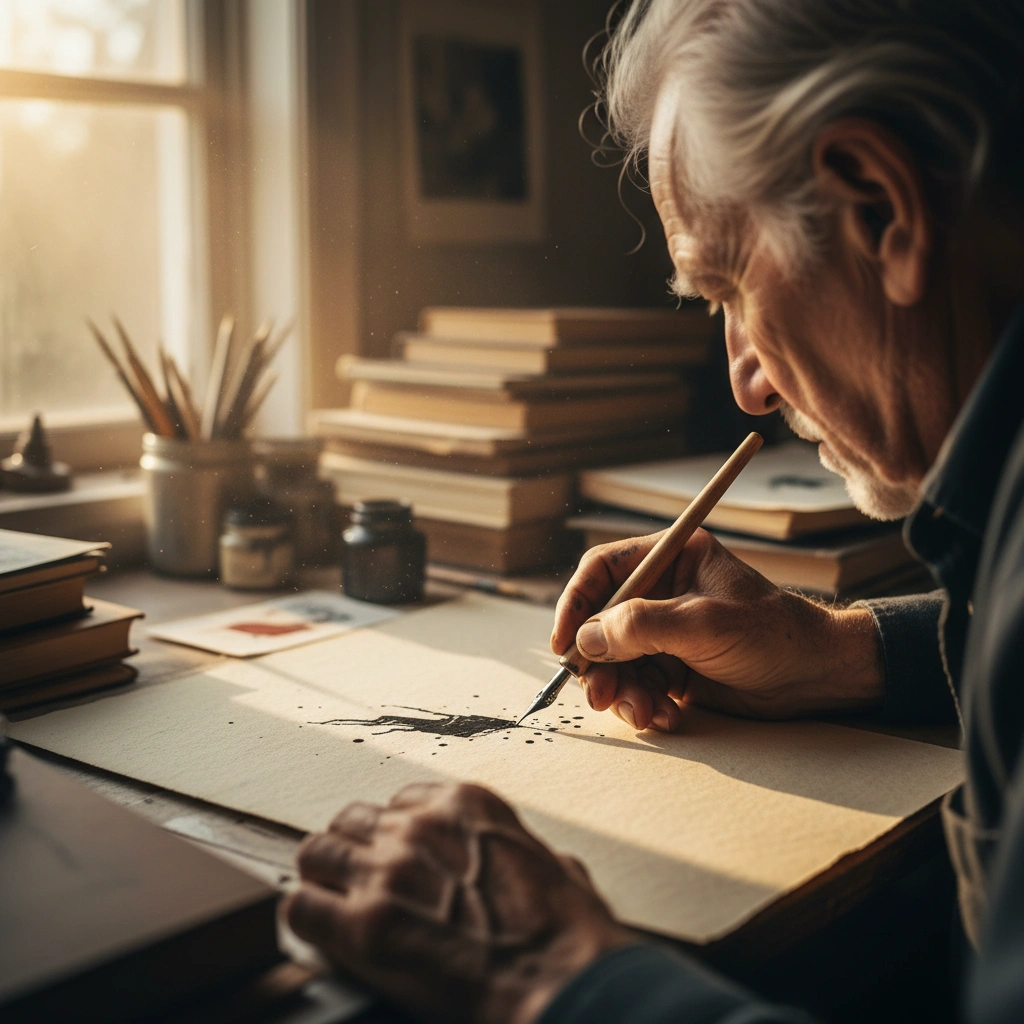
When you use Tatspark, you are utilizing an agent trained on "Tattooability." We prioritize the "skeleton" of the design over the surface rendering. This ensures that a generated snake, for example, has a bold outline (for a round liner) and finer interior scales (for a tight liner).
The Stencil Advantage
The biggest pain point in digital design is converting a concept into a printable format. Usually, this involves filtering in Photoshop or tracing in Procreate. Tatspark automates this via the Stencil feature.
- Upload your reference or generate a new concept.
- Select the Stencil mode to strip away lighting and color data.
- The AI calculates the optimal contrast for thermal printing.
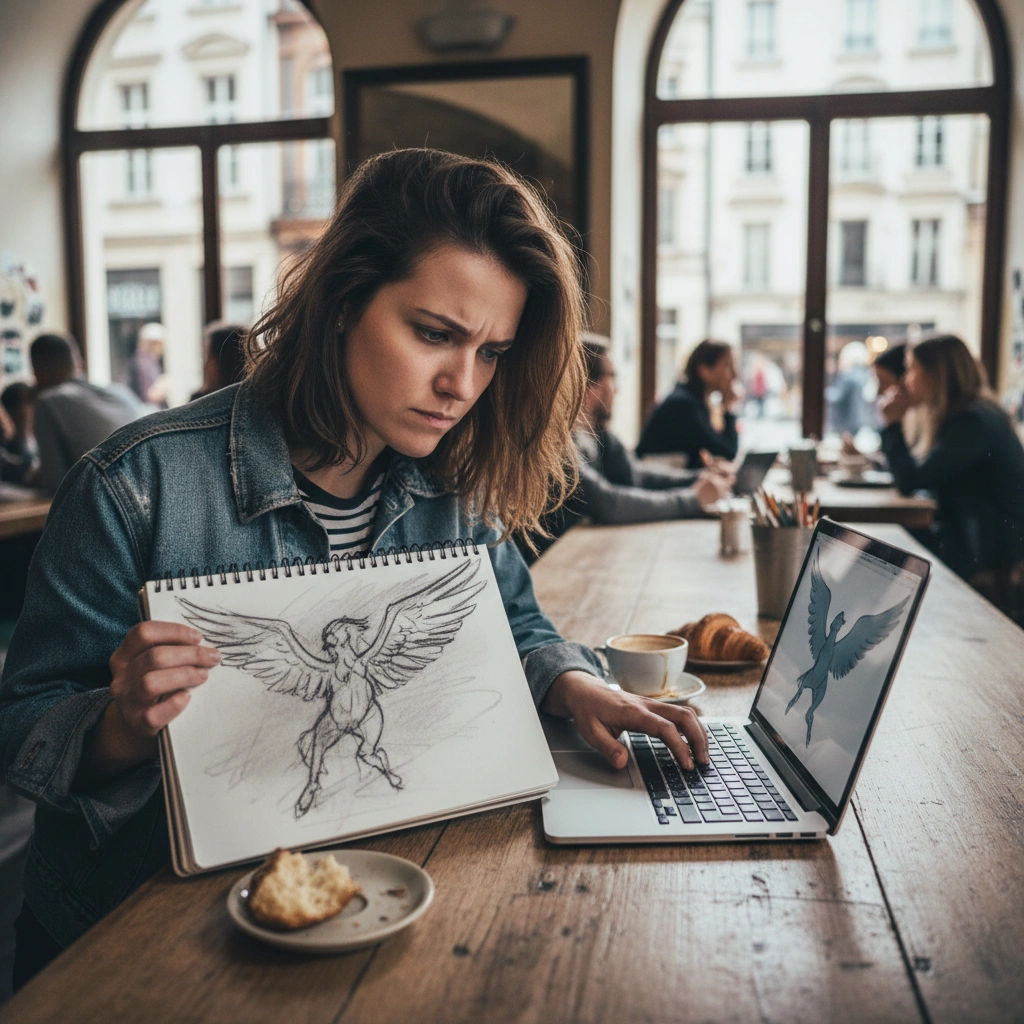
This creates a clean map that respects the integrity of the line. It prevents the common "muddy" output where lines bleed into shadows.
Fine-Tuning with Convert and Remix
Sometimes, the AI's initial guess on line weight might be too uniform. This is where the Remix and Convert tools become essential workflow assets. You can take a sketch that feels too "sketchy" or loose and tighten it up.
- Use Convert to turn a color photo into a line drawing.
- Use Remix to change the style from "Sketch" to "Traditional" or "Fine Line."
- The system recalculates line thickness based on the chosen style rules.
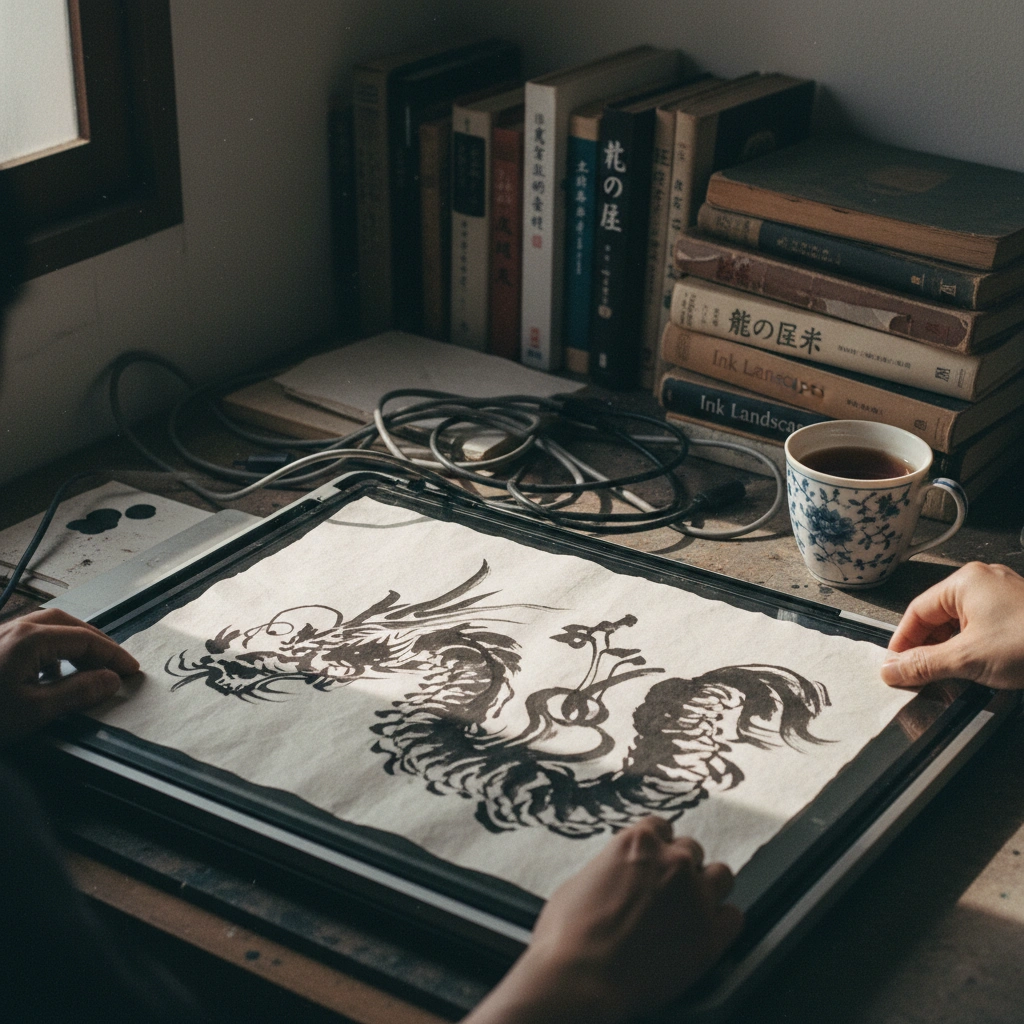
A Traditional style will force bolder, simpler lines. A Fine Line style will allow for delicate, single-needle weight interpretations.
Visualizing Depth with 3D Virtual Try-On
Line strength isn't just about the stencil; it's about how it reads on the skin from a distance. A line that looks thick on a screen might look thin on a large back piece.
- Use the 3D Virtual Try-On feature to place your design on a body part.
- Check the readability of the lines as they wrap around the curvature of the muscle.
- Adjust the scale to ensure the lines don't blur together over time.
This step is crucial for preventing "blobbing" as the tattoo ages. If the lines are too close or too thick in the preview, they will likely migrate under the skin later.
The Professional Edge
"Never rely solely on the screen brightness to judge line weight. Always run a test print of your Stencil export. Tatspark is calibrated for thermal copiers, but your machine's heat setting plays a role. If the AI generates lines that are too fine (under 3px), they may not burn onto the stencil paper correctly. Use the Extract tool to isolate elements and thicken them slightly if your printer runs hot."
Start Designing
Ready to create designs with perfect line integrity?
FAQ (People Also Ask)
- Q: Can Tatspark fix broken lines in my original drawing?
- A: Yes, using the Remix or Convert functions, the AI can interpret broken sketches as continuous vector-like paths, cleaning up the "noise" for a solid stencil.
- Q: Does the Stencil feature work for fine-line tattoos?
- A: Absolutely. Tatspark detects the style you are aiming for. If you select a fine-line aesthetic, the Stencil output will preserve thin, delicate weights rather than forcing bold traditional outlines.
- Q: Why is line strength important for AI tattoos?
- A: Without proper line strength definition, a tattoo will lack contrast and structure. Standard AI images look good on phones but fail as tattoos because they lack the clear, defined boundaries needed to hold ink in the skin.